1. On the top right hand corner of your browser, click the 3 dots
2. Click 'Translate...' from the list of options
3. A Google Translate menu will appear with default language options - click on one to translate the page
4. If you do not see your language in the list, click the 3 dots in the Google Translate menu and select 'Choose another language'
5. Open the dropdown and select your language
Translate This Page
1. Right click the page and select the option labeled 'Translate to...'
2. If the default language is not correct, click the language icon in the URL bar
3. Open the dropdown and select your language from the list
Translate This Page
1. On the top right hand corner of your screen, click the burger menu icon (3 horizontal lines)
2. Click 'Translate page...' from the list of options
3. In the 'Translate to' dropdown, select your language
Translate This Page
1. Click the language icon on the right hand side of your URL bar at the top of the page
2. From the list of available options, select your language
Fallback
Dịch trang này
1. Ở góc trên cùng bên phải của trình duyệt, nhấp vào dấu 3 chấm
2. Nhấp vào 'Dịch...' từ danh sách các tùy chọn
3. Menu Google Dịch sẽ xuất hiện với các tùy chọn ngôn ngữ mặc định - nhấp vào một tùy chọn để dịch trang
4. Nếu bạn không thấy ngôn ngữ của mình trong danh sách, hãy nhấp vào dấu 3 chấm trong menu Google Dịch và chọn 'Chọn ngôn ngữ khác'5
. Mở menu thả xuống và chọn ngôn ngữ của bạn
Dịch trang này
1. Nhấp chuột phải vào trang và chọn tùy chọn có nhãn 'Dịch sang...'
2. Nếu ngôn ngữ mặc định không chính xác, hãy nhấp vào biểu tượng ngôn ngữ trong thanh
URL 3. Mở menu thả xuống và chọn ngôn ngữ của bạn từ danh sách
Dịch trang này
1. Ở góc trên cùng bên phải màn hình của bạn, nhấp vào biểu tượng menu bánh mì kẹp thịt (3 đường ngang)
2. Nhấp vào 'Dịch trang...' từ danh sách các tùy chọn
3. Trong menu thả xuống "Dịch sang", hãy chọn ngôn ngữ của bạn
Dịch trang này
1. Nhấp vào biểu tượng ngôn ngữ ở phía bên tay phải của thanh URL ở đầu trang
2. Từ danh sách các tùy chọn có sẵn, hãy chọn ngôn ngữ của bạn
Dự phòng
이 페이지를 번역하세요
1. 브라우저 오른쪽 상단에서 점 3개를 클릭하세요.
2. 옵션 목록에서 '번역...'을 클릭하세요.
3. 기본 언어 옵션이 포함된 Google 번역 메뉴가 나타납니다. 해당 메뉴를 클릭하면 페이지가 번역됩니다.
4. 목록에 원하는 언어가 표시되지 않으면 Google 번역 메뉴에서 점 3개를 클릭하고 '다른 언어 선택'을 선택하세요.
5. 드롭다운을 열고 언어를 선택하세요.
이 페이지를 번역하세요
1. 페이지를 마우스 오른쪽 버튼으로 클릭하고 '번역...' 옵션을 선택하세요.
2. 기본 언어가 올바르지 않은 경우, URL 표시줄의 언어 아이콘을 클릭하세요.
3. 드롭다운을 열고 목록에서 언어를 선택하세요.
이 페이지를 번역하세요
1. 화면 오른쪽 상단에서 버거 메뉴 아이콘(가로선 3개)을 클릭합니다.
2. 옵션 목록에서 '페이지 번역...'을 클릭하세요.
3. '번역 대상' 드롭다운에서 언어를 선택하세요.
이 페이지를 번역하세요
1. 페이지 상단의 URL 표시줄 오른쪽에 있는 언어 아이콘을 클릭하세요.
2. 사용 가능한 옵션 목록에서 언어를 선택하세요.
이 페이지를 번역하세요
1. 브라우저 오른쪽 상단에서 점 3개를 클릭하세요.
2. 옵션 목록에서 '번역...'을 클릭하세요.
3. 기본 언어 옵션이 포함된 Google 번역 메뉴가 나타납니다. 해당 메뉴를 클릭하면 페이지가 번역됩니다.
4. 목록에 원하는 언어가 표시되지 않으면 Google 번역 메뉴에서 점 3개를 클릭하고 '다른 언어 선택'을 선택하세요.
5. 드롭다운을 열고 언어를 선택하세요.
Isalin ang Pahinang Ito
1. Sa kanang sulok sa itaas ng iyong browser, i-click ang 3 tuldok
2. I-click ang 'Isalin...' mula sa listahan ng mga opsyon
3. Lilitaw ang isang menu ng Google Translate na may mga default na pagpipilian sa wika - mag-click sa isa upang isalin ang pahina
4. Kung hindi mo nakikita ang iyong wika sa listahan, i-click ang 3 tuldok sa menu ng Google Translate at piliin ang 'Pumili ng ibang wika'
5. Buksan ang dropdown at piliin ang iyong wika
Isalin ang Pahinang Ito
1. I-right click ang pahina at piliin ang opsyong may label na 'Isalin sa...'
2. Kung hindi tama ang default na wika, i-click ang icon ng wika sa URL bar
3. Buksan ang dropdown at piliin ang iyong wika mula sa listahan
Isalin ang Pahinang Ito
1. Sa kanang sulok sa itaas ng iyong screen, i-click ang icon ng menu ng burger (3 pahalang na linya)
2. I-click ang 'Isalin ang pahina...' mula sa listahan ng mga opsyon
3. Sa dropdown na 'Isalin sa', piliin ang iyong wika
Isalin ang Pahinang Ito
1. I-click ang icon ng wika sa kanang bahagi ng iyong URL bar sa tuktok ng pahina
2. Mula sa listahan ng mga magagamit na opsyon, piliin ang iyong wika
Isalin ang Pahinang Ito
1. Sa kanang sulok sa itaas ng iyong browser, i-click ang 3 tuldok
2. I-click ang 'Isalin...' mula sa listahan ng mga opsyon
3. Lilitaw ang isang menu ng Google Translate na may mga default na pagpipilian sa wika - mag-click sa isa upang isalin ang pahina
4. Kung hindi mo nakikita ang iyong wika sa listahan, i-click ang 3 tuldok sa menu ng Google Translate at piliin ang 'Pumili ng ibang wika'
5. Buksan ang dropdown at piliin ang iyong wika
បកប្រែទំព័រនេះ។
1. នៅជ្រុងខាងស្តាំដៃនៃកម្មវិធីរុករករបស់អ្នក ចុចលើចំណុច 3
2. ចុច 'បកប្រែ...' ពីបញ្ជីជម្រើស
3. ម៉ឺនុយបកប្រែ Google នឹងបង្ហាញជាមួយជម្រើសភាសាលំនាំដើម - ចុចលើមួយដើម្បីបកប្រែទំព័រ
4. ប្រសិនបើអ្នកមិនឃើញភាសារបស់អ្នកនៅក្នុងបញ្ជីទេ សូមចុចចំនុច 3 នៅក្នុងម៉ឺនុយ Google Translate ហើយជ្រើសរើស 'Choose other language'
5. បើកបញ្ជីទម្លាក់ចុះ ហើយជ្រើសរើសភាសារបស់អ្នក។
1. នៅជ្រុងខាងស្តាំដៃនៃកម្មវិធីរុករករបស់អ្នក ចុចលើចំណុច 3
2. ចុច 'បកប្រែ...' ពីបញ្ជីជម្រើស
3. ម៉ឺនុយបកប្រែ Google នឹងបង្ហាញជាមួយជម្រើសភាសាលំនាំដើម - ចុចលើមួយដើម្បីបកប្រែទំព័រ
4. ប្រសិនបើអ្នកមិនឃើញភាសារបស់អ្នកនៅក្នុងបញ្ជីទេ សូមចុចចំនុច 3 នៅក្នុងម៉ឺនុយ Google Translate ហើយជ្រើសរើស 'Choose other language'
5. បើកបញ្ជីទម្លាក់ចុះ ហើយជ្រើសរើសភាសារបស់អ្នក។
ترجمة هذه الصفحة
1. في الزاوية اليمنى العليا من المتصفح، انقر فوق النقاط الثلاث
2. انقر فوق "ترجمة..." من قائمة الخيارات
3. ستظهر قائمة ترجمة Google مع خيارات اللغة الافتراضية - انقر فوق أحدها لترجمة الصفحة
4. إذا كنت لا ترى لغتك في القائمة، فانقر على النقاط الثلاث في قائمة ترجمة Google وحدد "اختيار لغة أخرى"
5. افتح القائمة المنسدلة وحدد لغتك
ترجمة هذه الصفحة
1. انقر بزر الماوس الأيمن على الصفحة وحدد الخيار المسمى "ترجمة إلى..."
2. إذا كانت اللغة الافتراضية غير صحيحة، فانقر فوق رمز اللغة في شريط URL
3. افتح القائمة المنسدلة وحدد لغتك من القائمة
ترجمة هذه الصفحة
1. في الزاوية اليمنى العليا من شاشتك، انقر فوق أيقونة قائمة البرجر (3 خطوط أفقية)
2. انقر فوق "ترجمة الصفحة..." من قائمة الخيارات
3. في القائمة المنسدلة "ترجمة إلى"، حدد لغتك
ترجمة هذه الصفحة
1. انقر فوق رمز اللغة الموجود على الجانب الأيمن من شريط URL الخاص بك أعلى الصفحة
2. من قائمة الخيارات المتاحة، حدد لغتك
ترجمه این صفحه
1. در گوشه سمت راست بالای مرورگر خود، روی 3 نقطه کلیک کنید
2. از لیست گزینه ها روی "Translate..." کلیک کنید
3. منوی Google Translate با گزینه های زبان پیش فرض ظاهر می شود - برای ترجمه صفحه روی یکی کلیک کنید
4. اگر زبان خود را در لیست نمیبینید، روی 3 نقطه در منوی Google Translate کلیک کنید و «انتخاب زبان دیگری» را انتخاب کنید.
5. منوی کشویی را باز کنید و زبان خود را انتخاب کنید
ترجمه این صفحه
1. روی صفحه کلیک راست کرده و گزینه با عنوان "Translate to..." را انتخاب کنید.
2. اگر زبان پیش فرض درست نیست، روی نماد زبان در نوار URL کلیک کنید
3. منوی کشویی را باز کنید و زبان خود را از لیست انتخاب کنی
ترجمه این صفحه
1. در گوشه سمت راست بالای صفحه، روی نماد منوی همبرگر (3 خط افقی) کلیک کنید.
2. از لیست گزینه ها روی "ترجمه صفحه..." کلیک کنید
3. در منوی بازشوی «ترجمه به»، زبان خود را انتخاب کنید
ترجمه این صفحه
1. روی نماد زبان در سمت راست نوار URL خود در بالای صفحه کلیک کنید
2. از لیست گزینه های موجود، زبان خود را انتخاب کنید
بازگشت به عقب
Skipped to main content
Tailored Learning
Your path to learning, skills, and future opportunities
What is Tailored Learning?
Tailored Learning is a program designed for young people from Year 8 to Year 12 who might find school challenging or feel disconnected from learning.
It gives participants a different way to learn - one that fits their life and helps them succeed.
Why Tailored Learning?
Sometimes life gets complicated. Tailored Learning is here to help young people stay on track by:
Understanding their needs through personalised support
Helping with life challenges that make learning hard
Connecting participants to real opportunities for education, training, and jobs
When you join Tailored Learning with APM, you’ll get:
Case Management
Regular support with a friendly case manager
Meet at your school or at our local APM site
Access to other helpful programs and services
Group Programs
Fun and practical sessions designed for your group’s needs
Learn skills together and build confidence
eLearning
Online modules from Employable Me to boost your job readiness
Person-centred support
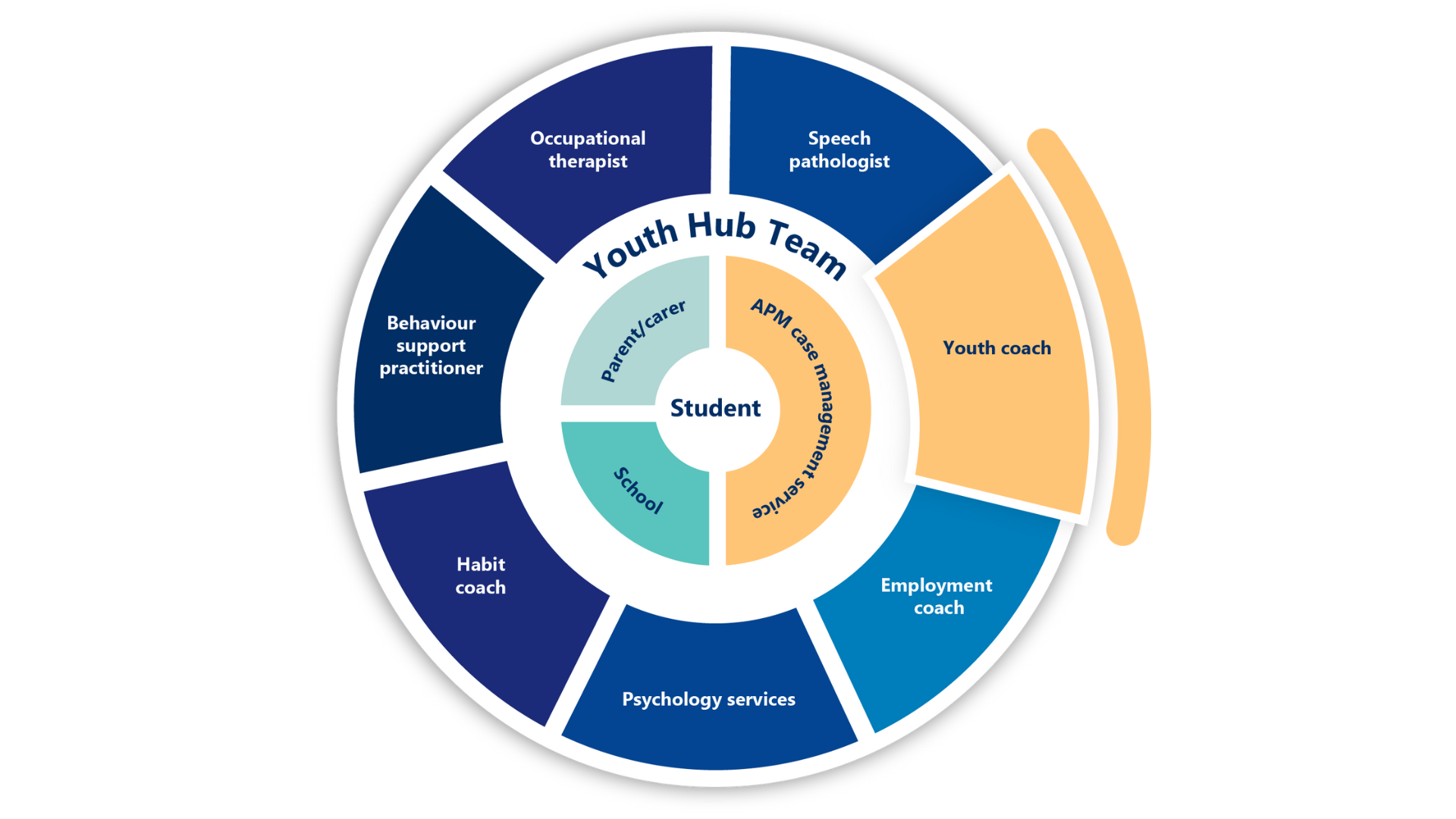
Our Youth Connections and Pathways Model shows how APM’s Tailored Learning program works.
At the center is the student. Around them is a Youth Hub Team with coaches and specialists who help with learning, wellbeing, and planning for their future.
Outside the hub are extra supports like health services, community groups, and job pathways.
Students who join our program, may get access to:
Personalised guidance from youth coaches and professionals
Health and wellbeing services
Connections to community and cultural groups
Support for school leavers and mental health needs
Clear pathways to employment and further training
APM’s role is to bring everyone together and make sure they work as one team for the student.
We coordinate their Youth Hub Team, set up meetings, share information, and create one clear plan so they don’t have to manage different services alone.
We also connect them to outside supports like doctors, training providers, and employers. Everything is organised so each student gets the right help at the right time to reach their goals.
Extended description of the Youth Hub Team diagram
The diagram is a circular hub-and-spoke model representing the Youth Hub Team structure.
At the center is Student. Surrounding the student are three inner-ring segments:
Parent/carer, School, and APM case management service.
A middle ring labeled Youth Hub Team encircles these elements.
The outer ring shows specialist roles:
Occupational therapist, Speech pathologist, Youth coach,
Employment coach, Psychology services, Habit coach,
and Behaviour support practitioner.
Most outer segments are dark blue; Youth coach and APM case management service are orange;
Parent/carer and School are teal; all labels use white text. Thin white dividers separate segments,
with a decorative orange arc outside the ring.
This description is provided to meet WCAG requirements for complex images, ensuring users who rely on screen readers
have full access to the information conveyed by the diagram.
Tip: select “Extended description” to read the full explanation of the diagram.
What makes Tailored Learning different?
Flexible and tailored: We work with participants and schools to create a plan that suits their goals
Engaging modules: Developed by experienced allied health professionals
Community connections: Meet people, build networks, and discover opportunities
Career pathways: Move toward further training or employment
Tailored Learning was previously known as Flexible Learning Options (FLO).
Who can join?
Participants who are
In school years 8 to 12
At risk of leaving school or struggling to stay engaged
Participants have access to multiple training opportunities through our partners, as well as these popular modules:
Establishing vocational identity
Personal presentation
Soft skills development
Communication
Digital literacy
Time management
Self-advocacy
Using public transport
Handling money and budgeting
Financial literacy
Eligible participants may have access to the following NDIS supports:
Vocational Assessments – completed by psychologists
Speech therapy
Occupational therapy
Behaviour supports
Habit coaching
As part of APM our team may provide access to multiple wellbeing resources including Employable Me learning modules and Wellbeing Gateway platform.
Specific training modules may include:
Emotions and regulation
Stress and resilience
Relationships and boundaries
Selfcare and wellness
Creativity and expression
Problem solving and decision making
Identity and culture
Mental health awareness
Where is Tailored Learning available?
APM Futures delivers Tailored Learning in South Australia.
You can apply if you're in the South Australian High Schools areas of Berri, Felixstow, Flinders Park, Gawler, Kadina, Mount Barker, Mount Gambier, Murray Bridge, Noarlunga, Parra Hills, Pirie, Port Augusta, Port Lincoln.
Ready to start?
If you’re a young person looking for support, talk to your school or contact us today.
We use cookies to ensure you get the best experience. Please choose the cookie level that's appropriate for you. We recommend allowing all cookies to ensure you get the most out of our website. Cookie Policy.